Visual Enhancer — AI image and video enhancement for your RTX desktop

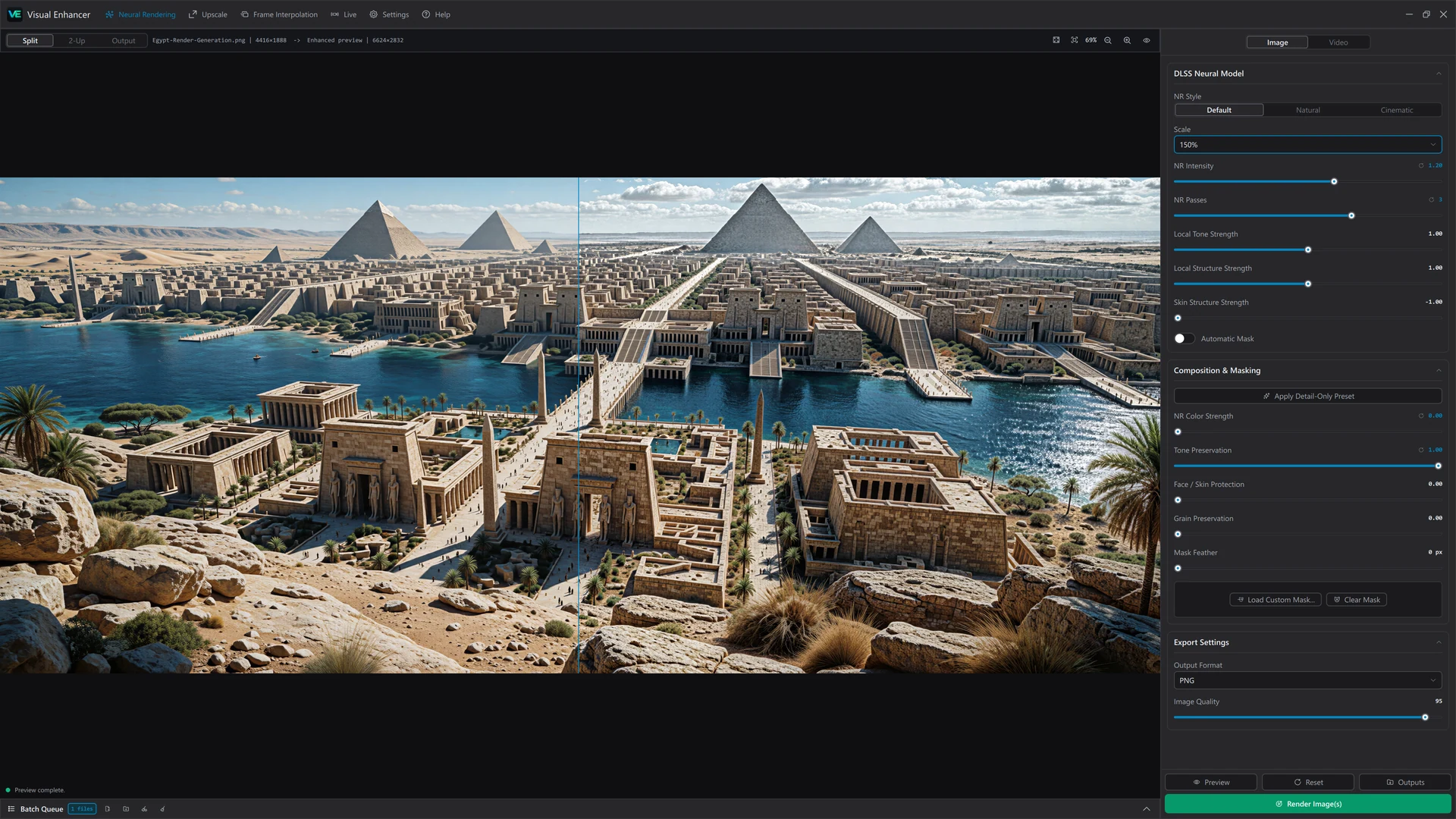
Visual Enhancer with an Egypt scene in Split comparison view and enhancement controls on the right

Neural rendering, upscaling, smoother motion, and color.
Bring your images and video together in one focused desktop workflow.

01 /See the difference

Higher detail.
Cleaner images.
More natural results.

Find the right tools for your source.
Explore real exports, compare the detail,
and see what changes.

Neural Rendering
Images & video

A fresh look at every detail.

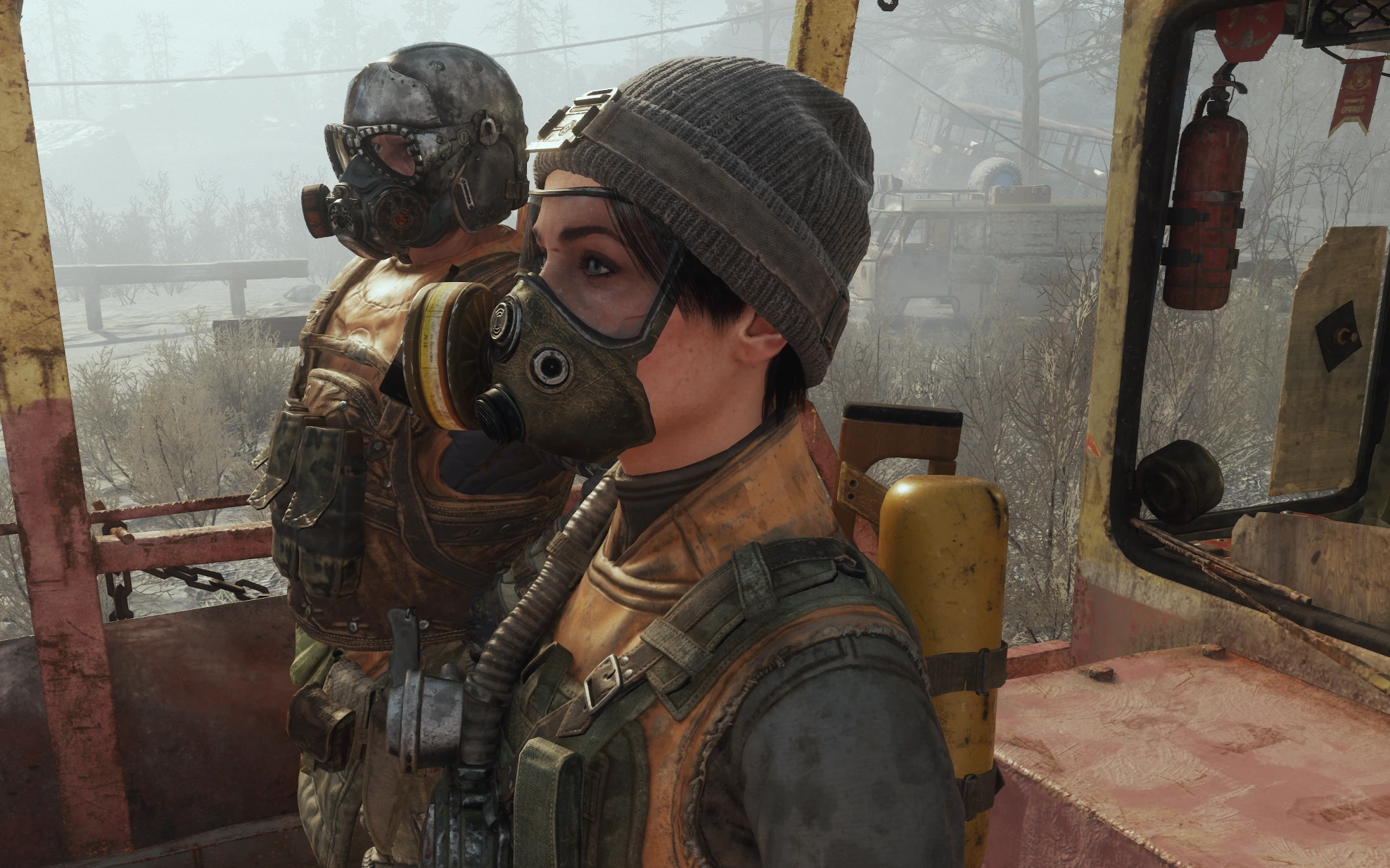
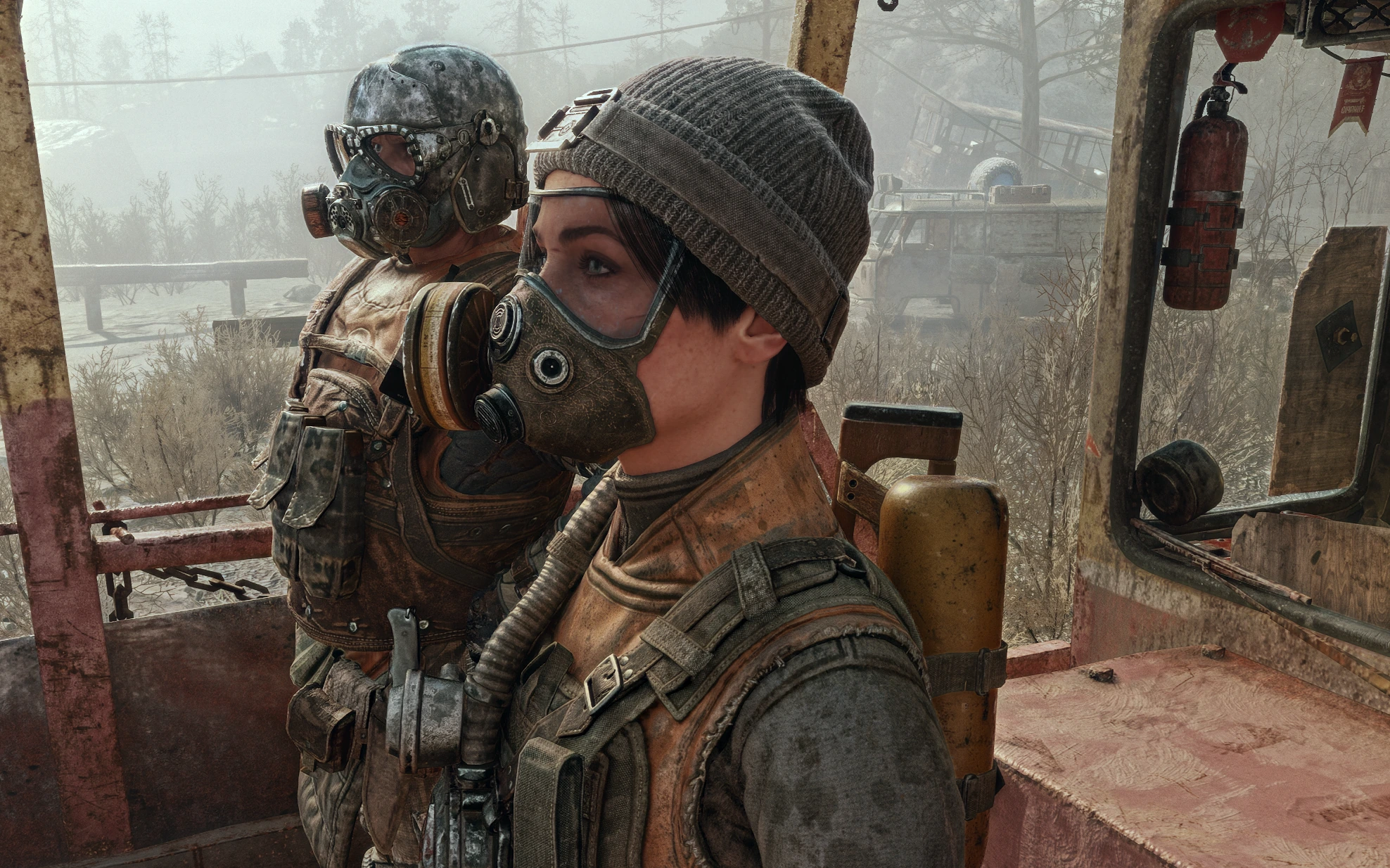
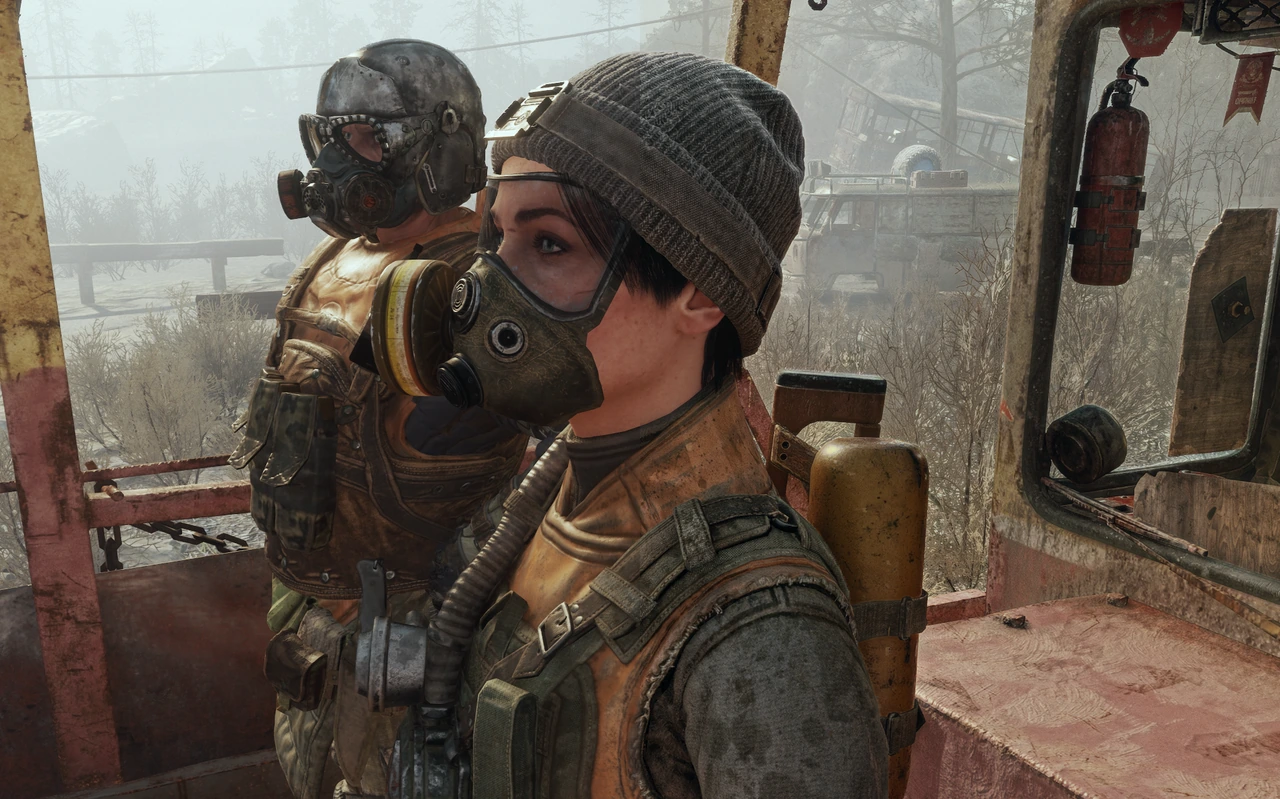
Bring new definition to textures, faces, and fine detail. Find the right balance with adjustable intensity, styles, and controls for selected areas.

  • Styles and adjustable intensity
  • Automatic and custom masks
  • Separate image and video pipelines
Original: Characters on a weathered train, showing fabric, skin, and metal detailEnhanced: Characters on a weathered train, showing fabric, skin, and metal detail
DLSS Neural RenderingDrag to compare the original screenshot with the processed image.
Upscaling
Images & video

Give small sources more room.

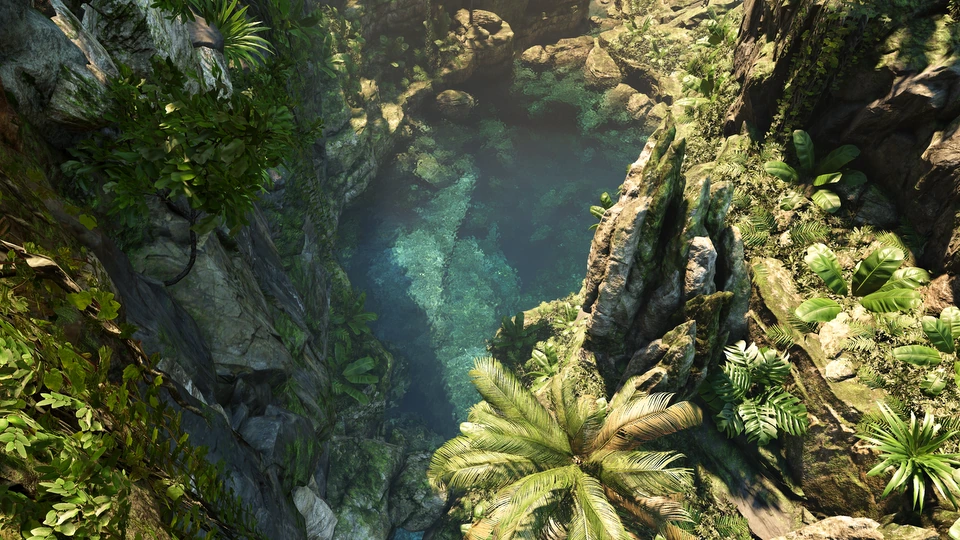
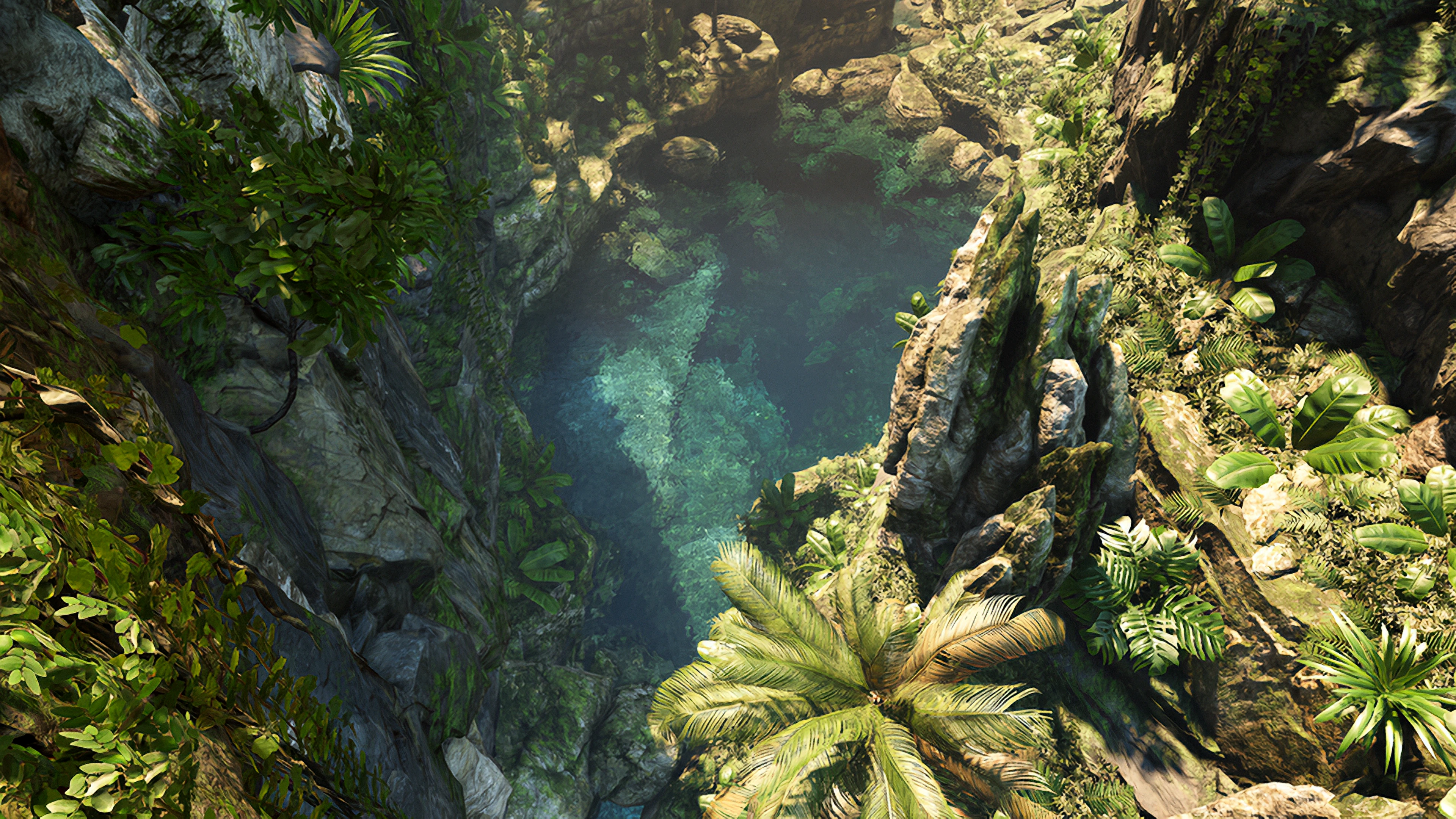
Scale images and video with RTX or DLSS Super Resolution. Choose a quality mode, a scale factor, or the exact dimensions your next project needs.

  • RTX and DLSS Super Resolution
  • Custom output dimensions
  • Lightweight upscaling for video
Original: A sunlit tropical canyon with dense foliage, rocky cliffs, and clear blue waterEnhanced: A sunlit tropical canyon with dense foliage, rocky cliffs, and clear blue water
4× upscaling · 540p → 4K960 × 540 source → 3840 × 2160 output, shown at the same display size.
Smoother motion
Video

Keep the action flowing.

Create intermediate frames with DLSS Frame Generation or Video Frame Generation. Choose a target frame rate and preview the movement before exporting.

  • Target frame rate or frame multiplier
  • Scene-cut detection in Video Frame Generation
  • Compare the motion before exporting

Both videos start automatically and loop silently. Drag or use the arrow keys to compare. Use the play or pause button to control both videos. On the divider, press Space to pause or resume, or Escape to pause.

Frame generation · 24 → 120 FPSDrag to compare 24 FPS with 120 FPS. Both clips loop at the same speed.
Color & HDR
Images & video

Make the final look your own.

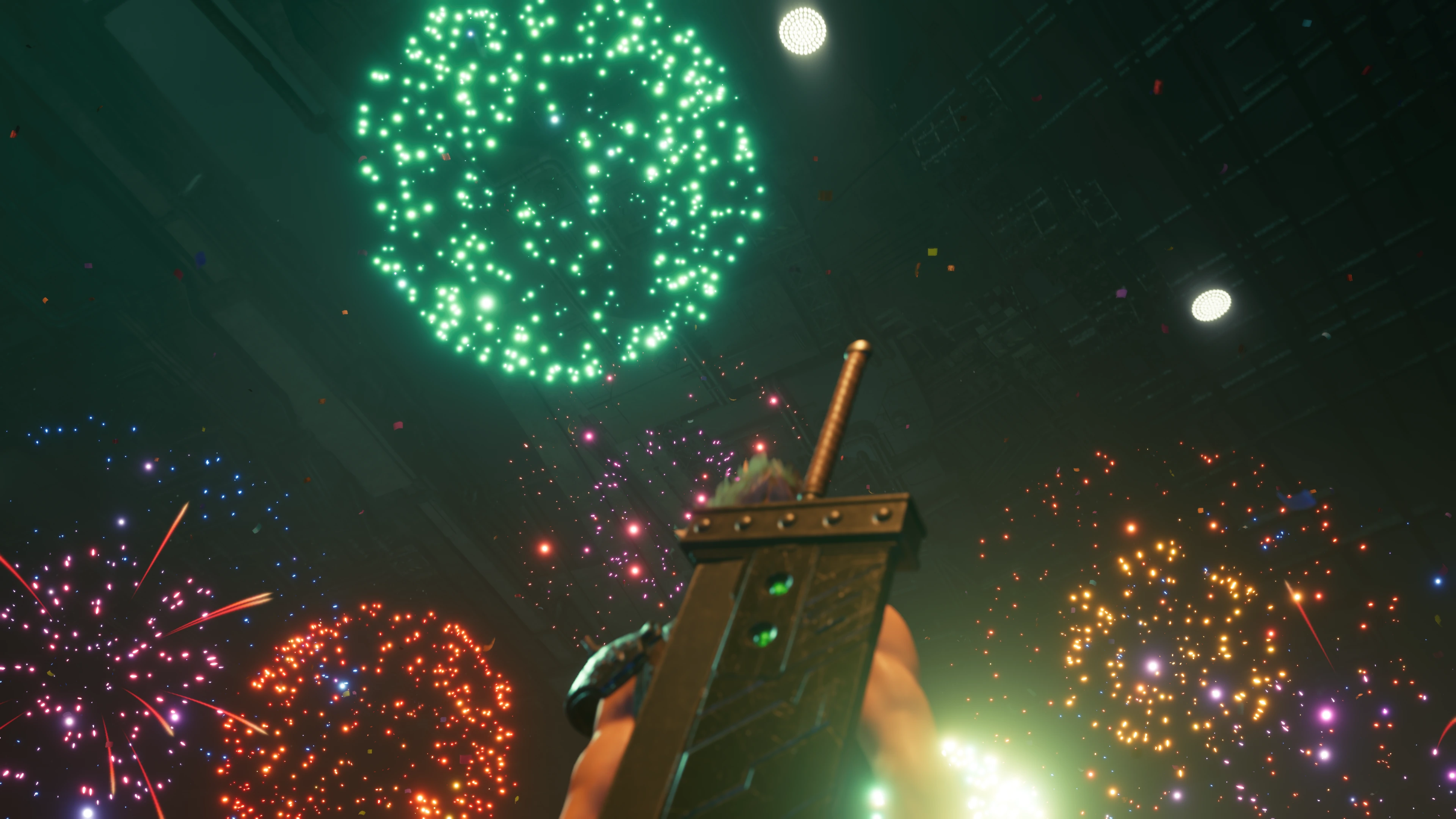
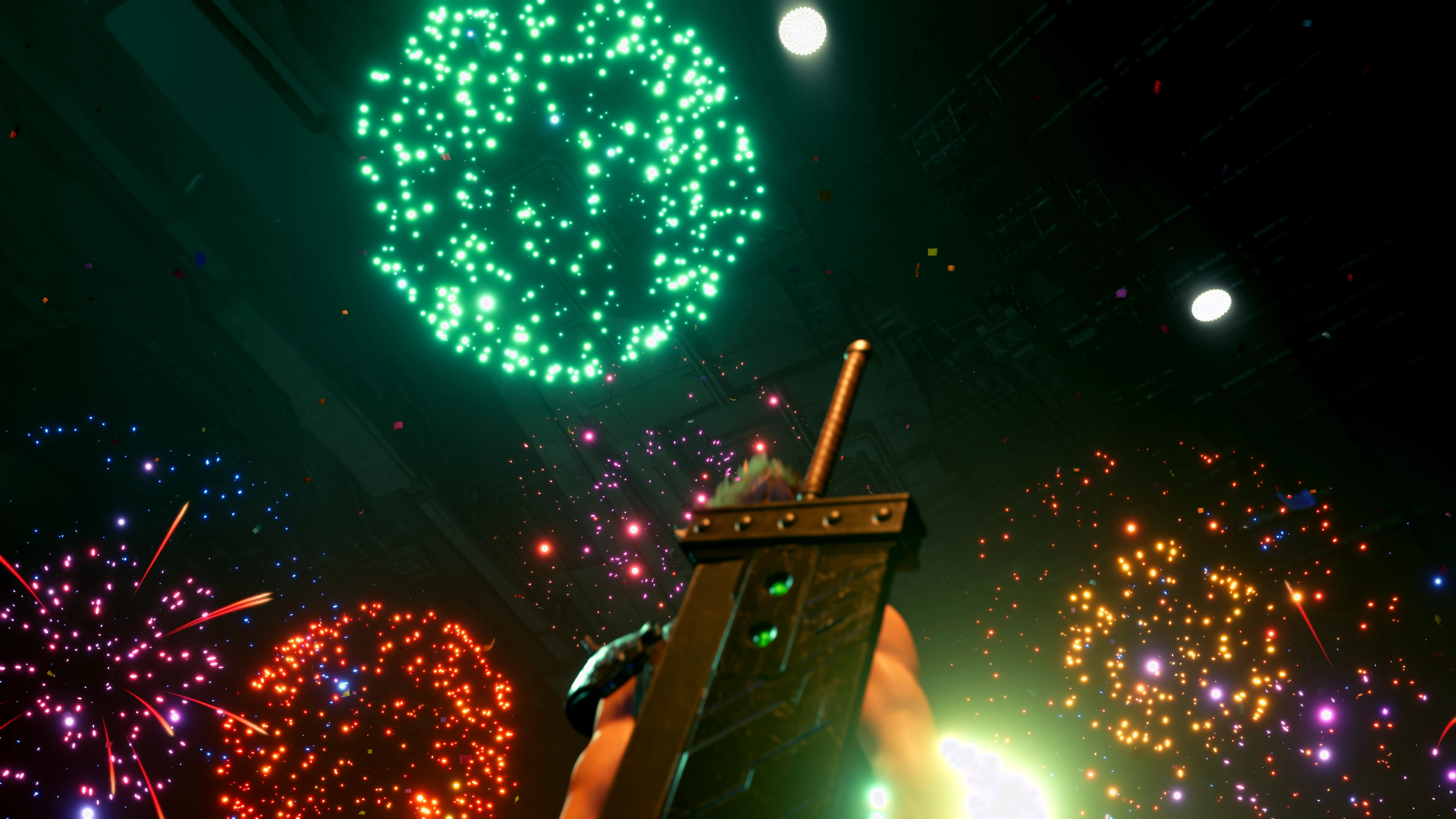
Balance light and color, apply a LUT, or match an image reference. Finish with sharpening and film grain, and export compatible video in 10-bit HDR.

  • Color controls, .cube LUTs, reference matching
  • NVIDIA NIS or AMD CAS sharpening
  • SDR-to-HDR video conversion
Original: Colorful fireworks illuminating a dark indoor sceneEnhanced: Colorful fireworks illuminating a dark indoor scene
Color & HDR · richer color, deeper contrastDrag to compare color and contrast. HDR output requires compatible playback and a display.

And way more

02 /Simple workflow

From input to
export in four steps.

Start with one effect or build a complete pipeline.
Preview first. Export when it feels right.

  1. 01

    Add media

    Open a file, add a folder, or drop a whole batch into the queue.

  2. 02

    Build your pipeline

    Enable the tools you need. Drag the stages into the order that works for you.

  3. 03

    Compare & refine

    Inspect the detail in Split, 2-Up, or Output view before committing to a render.

  4. 04

    Export

    Choose your format, quality, and destination. Export a single file or the batch.

  • Single files or whole batches
  • Save and reuse your presets
  • PNG, TIFF, WebP, H.264, H.265, AV1 & more
  • Drag, drop, or paste your media
  • Arrange effects in your preferred order
  • Split, 2-Up, and Output previews
  • Automatic and custom control masks
  • Apply LUTs or match a reference
  • Sharpen details and add film grain
  • Up to 16-bit PNG and TIFF export
  • Preserve or export 10-bit HDR
  • Pause, cancel, or retry batch jobs
03 /Before you start

Built for your Windows desktop

Your hardware determines which tools are available.
The app checks support before processing.

Windows 11

64-bit Windows. Extract the complete package to a writable folder.

GPU compatibility

A current NVIDIA driver for AI processing. Support varies by effect.

Frame generation

Frame generation requires RTX 40 or 50 series. DLSS Frame Generation also requires HAGS.

Feature support & export details

AI enhancement

Super Resolution and Lightweight Upscale support RTX 20, 30, 40, and 50 series. Neural Rendering availability is checked on the selected GPU. Ray Reconstruction video needs NVIDIA Optical Flow support.

Video & HDR

Enable Hardware-accelerated GPU scheduling (HAGS) in Windows for DLSS Frame Generation. HDR needs a compatible pipeline and codec. AV1 hardware encoding requires RTX 40 or 50; software AV1 is also available.

Files & storage

Keep the extracted application files together, with room for outputs and temporary video data. Export PNG or TIFF at up to 16-bit, or choose a supported video codec and container.

Full requirements

Ready to enhance
your next file?